How to Set Price Alerts for Any NGX Stock and Get Instant Notifications
Create price alerts for NGX-listed stocks and receive notifications through WhatsApp, SMS, email or push notification with NextRevach.
Following the Nigerian stock market should not require you to spend your entire day checking share prices.
With NextRevach, you can create price alerts for more than 140 stocks listed on the Nigerian Stock Exchange (NGX).
Using real-time NGX market data, NextRevach monitors your selected stocks and sends you an instant notification when your price target is reached.
Set your alert once, and we monitor the market for you—so you can focus on your day and still be notified when an important price movement occurs.
Here are the simple steps for creating a price alert for any NGX stock—or multiple stocks—of your choice:
To create an NGX stock price alert:
Sign up or log in at www.nextrevach.africa.
Open the Alert module.
Click Add new alert.
Search for and select an NGX-listed stock.
Select the alert type you want.
Enter your target price or alert condition.
Choose one or more notification channels.
Provide the required email address or Nigerian phone number.
Review the alert and click Confirm & Save.
Open the Alerts table to view and manage your active, paused and triggered alerts.
You choose the stock and set the target. NextRevach monitors the selected condition while you continue with your work, business and daily activities.
Set your target. We monitor the market. You get alerted.
What Is an NGX Stock Price Alert?
An NGX stock price alert is a notification that informs you when a stock listed on the Nigerian Exchange reaches a price or market condition you have selected.
For example, if an NGX stock is currently trading at ₦69, you may want to receive a notification when it rises to ₦75 or falls to ₦60.
Instead of repeatedly opening an app or website to check the price, you can create an alert. When NextRevach detects that your selected condition has been reached, it sends a notification through your chosen channel or channels.
How to Create a Price Alert for an NGX Stock
1. Create or Log In to Your NextRevach Account
Visit www.nextrevach.africa and create an account.
If you already have a NextRevach account, log in using your existing details.
2. Open the Alert Module
After signing in, select Alert from the main navigation menu.
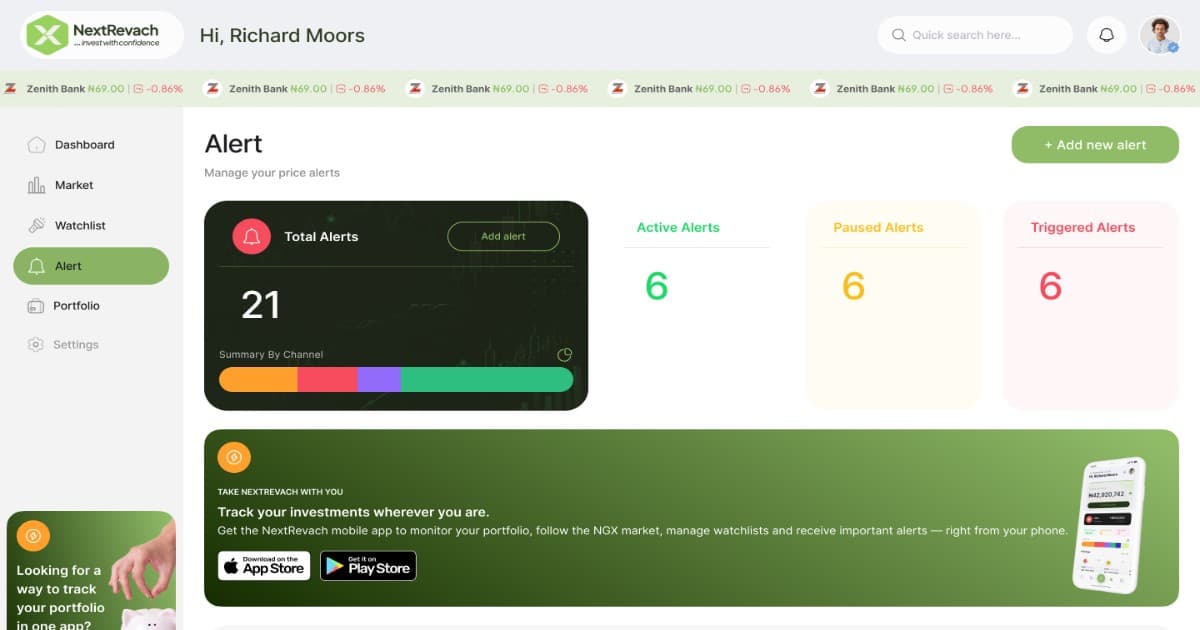
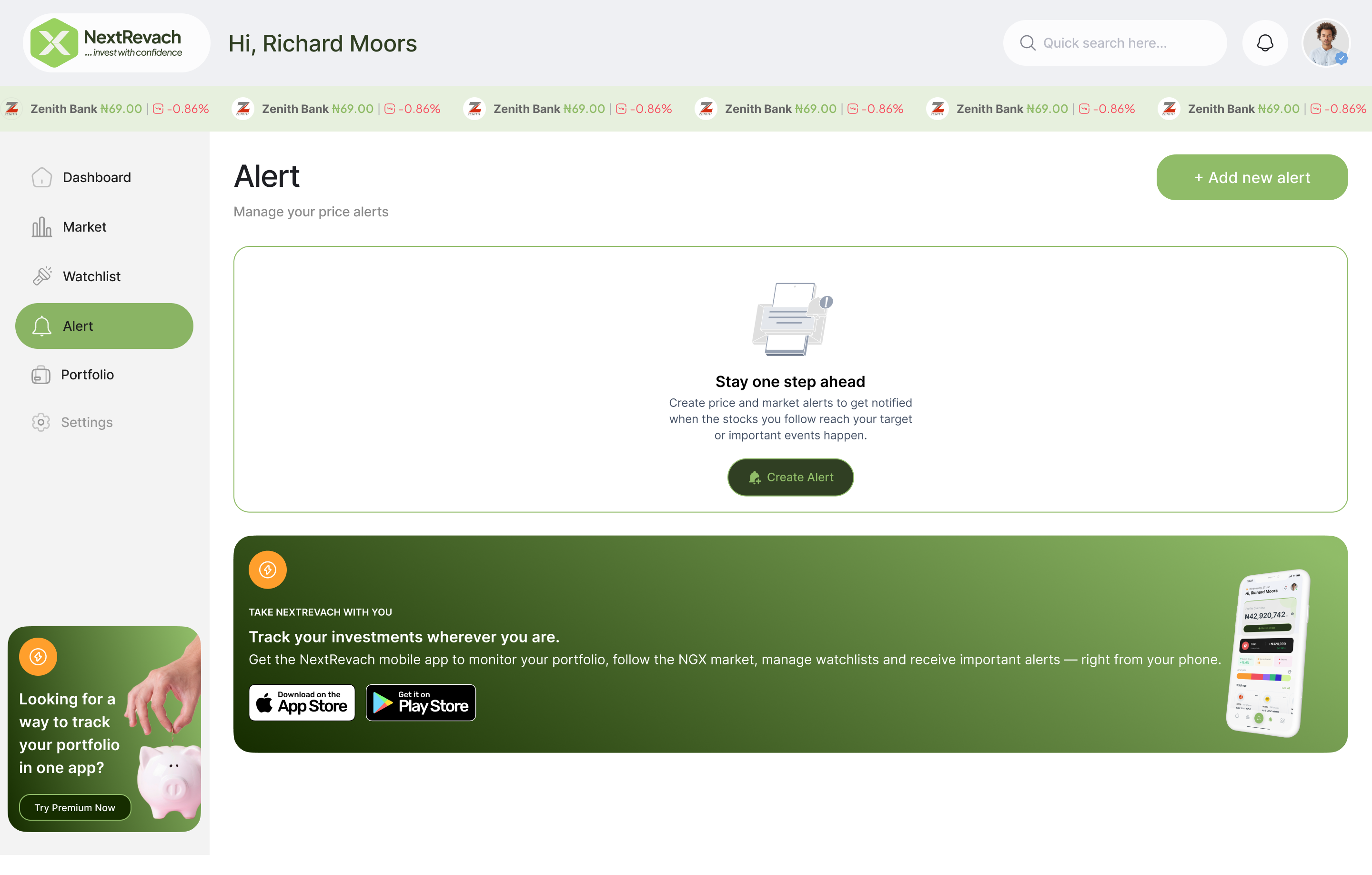
The Alert dashboard shows your total alerts and groups them into active, paused and triggered alerts.
If you have not created an alert before, you will see an option to create your first alert.
3. Click “Add New Alert”
Click Add new alert at the top of the page. If your alert list is empty, you can also click Create Alert.
This will open the alert-creation process.
4. Select the NGX Stock You Want to Monitor
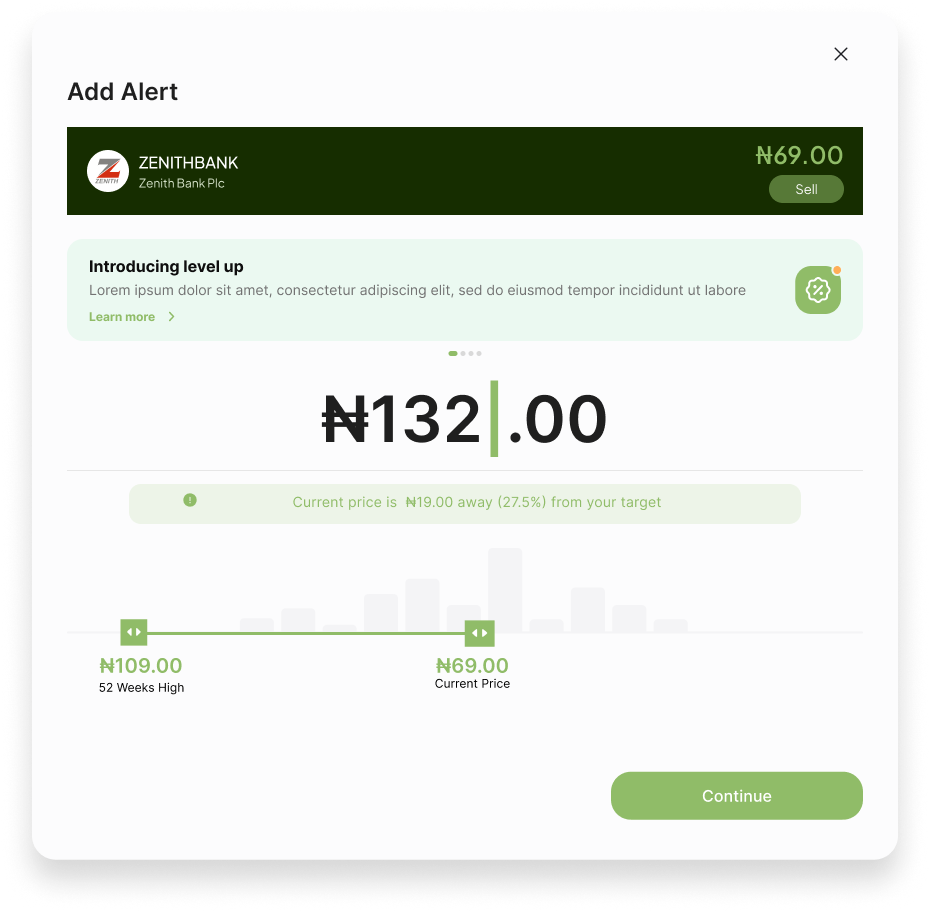
Search for the company using its name or NGX ticker symbol, and then select the correct stock from the results.
You can create alerts for stocks in your portfolio, companies on your watchlist or other supported NGX-listed equities you want to monitor.
5. Choose an Alert Type
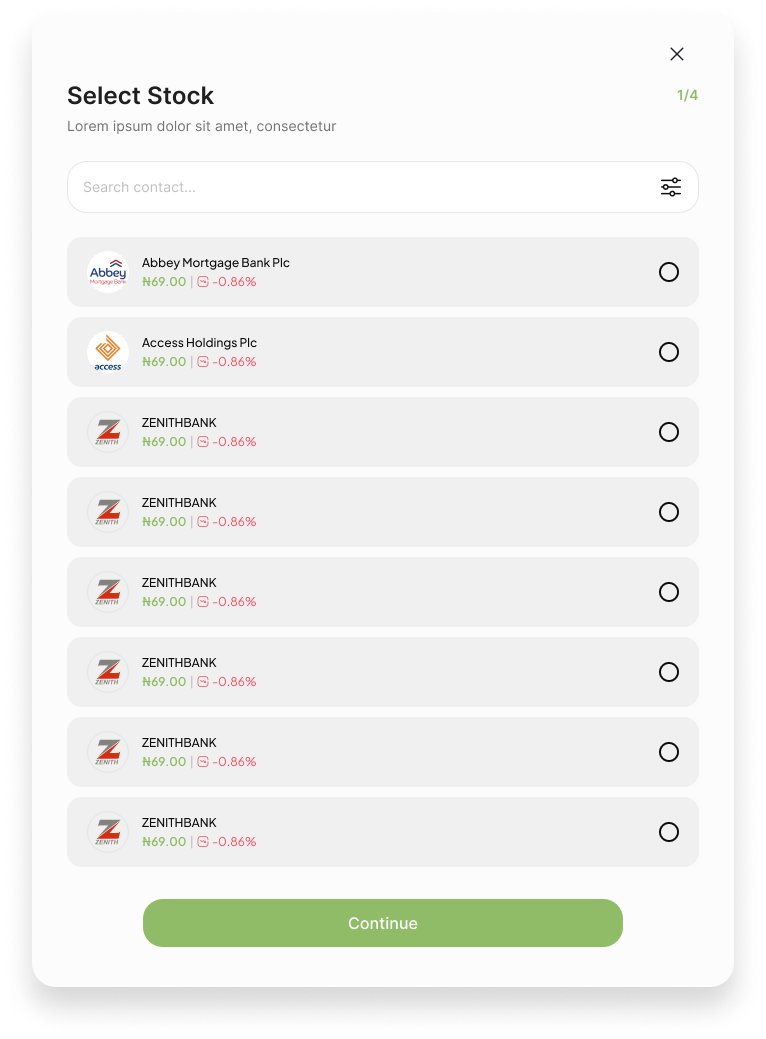
Select the type of market condition you want NextRevach to monitor.
Available alert types may include:
Buy Alert: Get notified instantly when the stock reaches your selected buy-price level.
Sell Alert: Get notified instantly when the stock reaches your selected sell-price level.
52-Week Alert: Receive an instant alert when the stock reaches an important 52-week price level.
Volume Up or Down: Monitor significant changes in trading volume instantly.
Percentage Increase or Decrease: Receive an alert when the stock moves by your selected percentage instantly.
Buy and sell alerts are monitoring labels selected by the user. NextRevach does not automatically buy or sell shares.
6. Enter Your Target Price
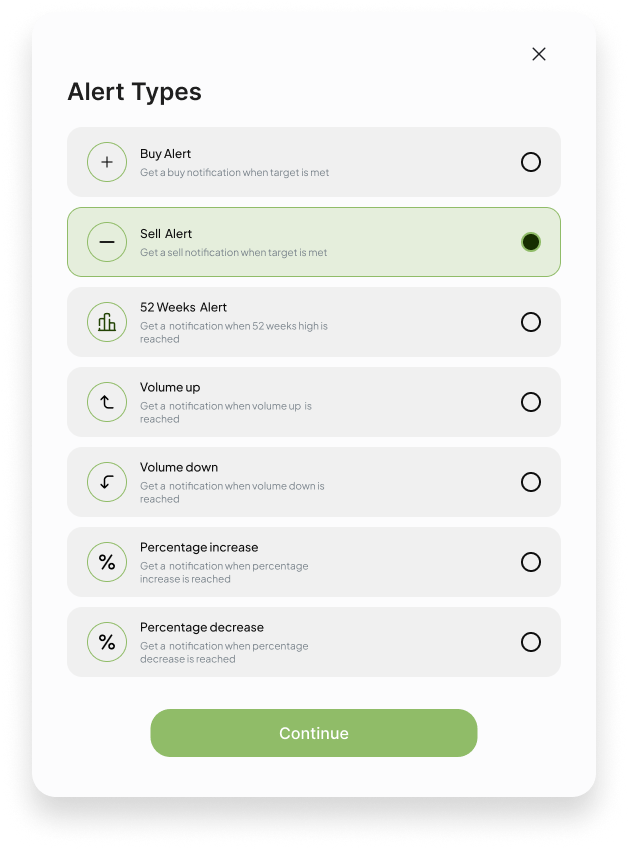
Enter the price at which you want the alert to trigger.
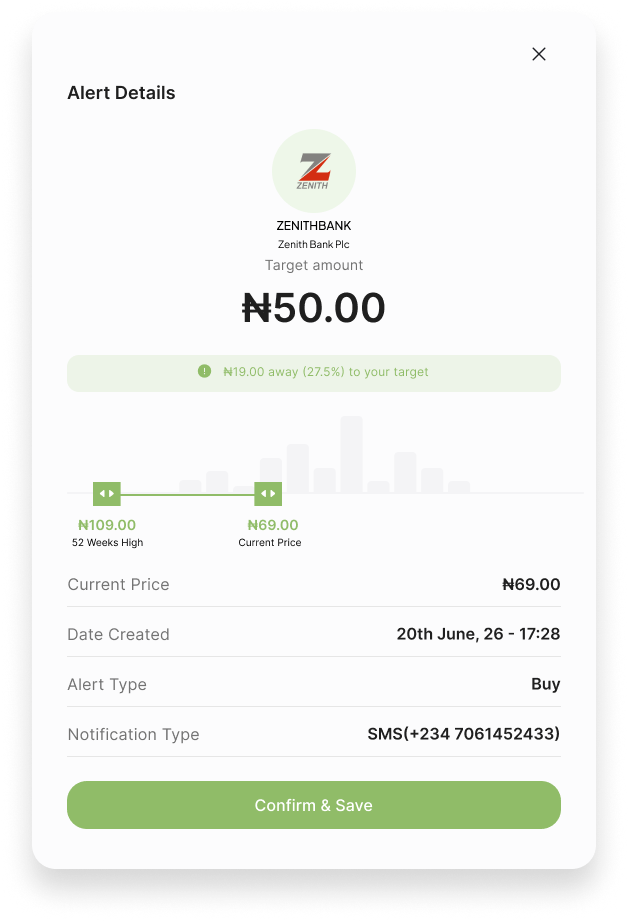
For example, if Zenith Bank is currently trading at ₦69 and you want to be notified when it reaches ₦75, enter ₦75 as your target price.
NextRevach may also display the stock’s current price and the distance between the current price and your target. Check the amount carefully before continuing.
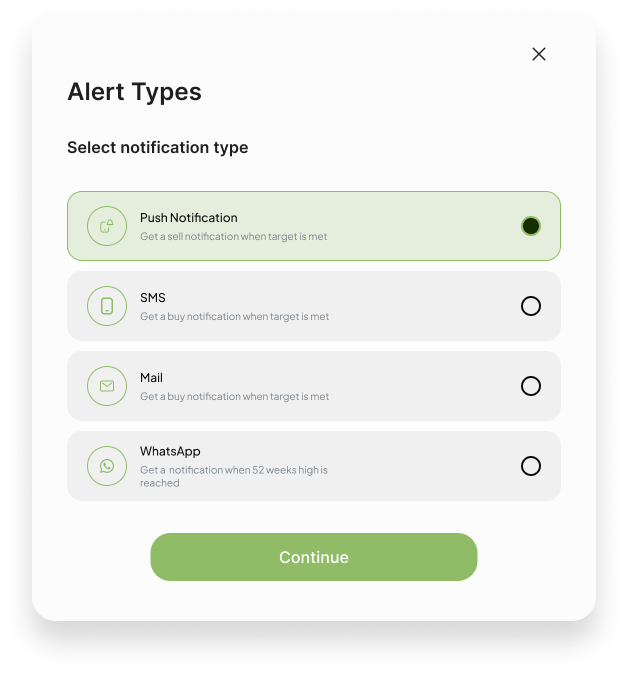
7. Select Your Notification Channels
Choose how you want to receive the alert.
Supported notification channels may include:
WhatsApp
SMS
Email
Push notification
You can select more than one channel where your account and subscription support it.
For SMS, provide a valid Nigerian phone number. For WhatsApp, provide a valid number connected to WhatsApp. For email alerts, enter an active email address. For push notifications, ensure that notifications are enabled on your device.
8. Review and Save Your Alert
Before saving, review the stock, alert type, target price, notification channels and contact details.
If everything is correct, click Confirm & Save.
Your alert will now appear in your Alerts table.
How to Manage Your NGX Stock Alerts
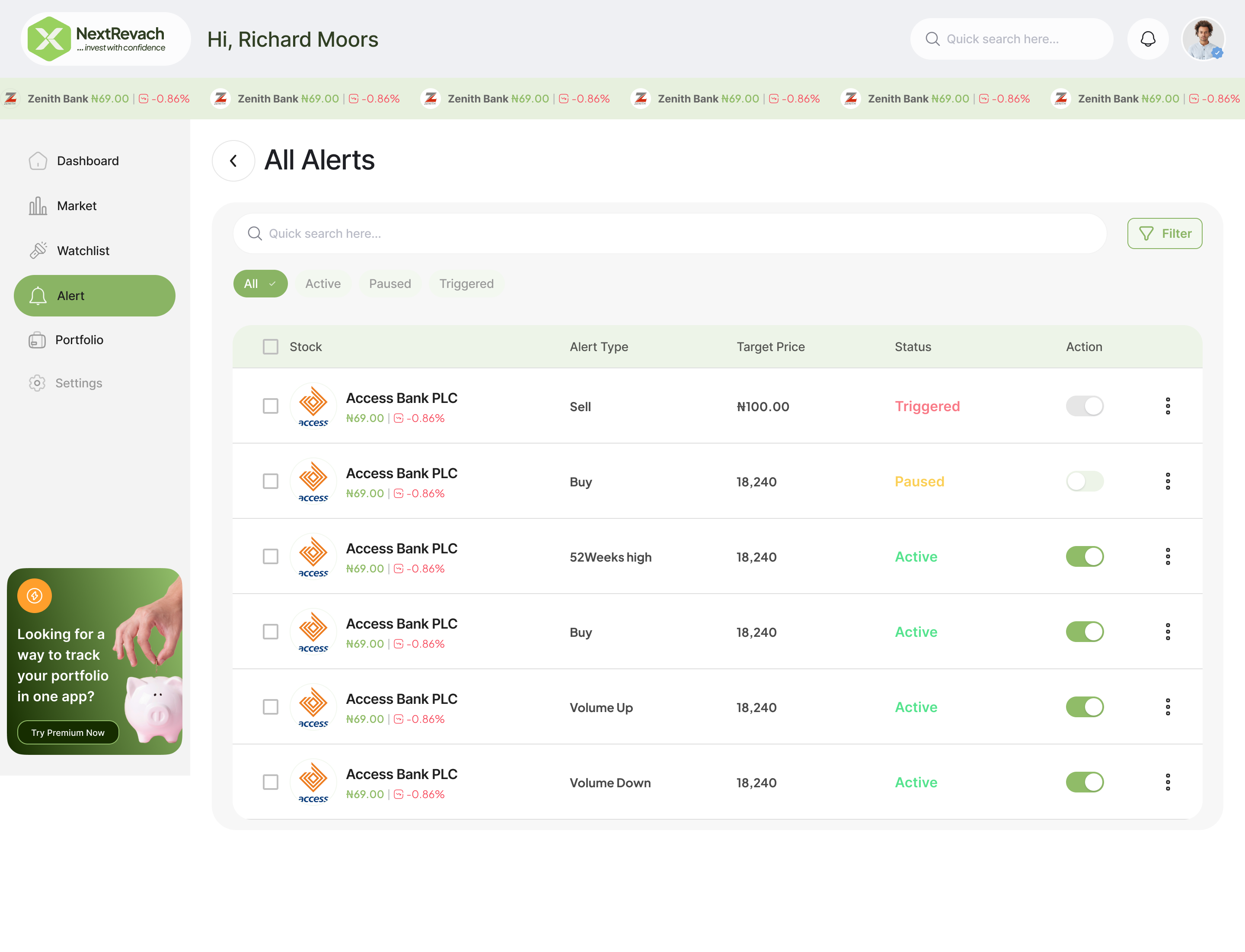
The Alerts table gives you one place to view and manage the alerts you have created.
Each alert can display:
The selected stock
Alert type
Target price
Current status
Available actions
An alert may have one of three main statuses:
Active: NextRevach is monitoring the selected condition.
Paused: Monitoring has been temporarily stopped.
Triggered: Your selected target or condition has been detected.
You can pause an alert when you no longer want it monitored and reactivate it later.
Why Use NextRevach Stock Alerts?
Share prices can move while you are working, attending meetings or running your business. Manually checking every stock throughout the day is time-consuming, and it is still possible to miss an important movement.
NextRevach helps you:
Monitor supported NGX-listed stocks
Set your own target prices
Receive notifications when selected conditions are detected
Use multiple notification channels
Manage active, paused and triggered alerts from one dashboard
You do not need to keep the NextRevach website open after creating an active alert.
Frequently Asked Questions
How do I set a price alert for a Nigerian stock?
Log in to NextRevach, open the Alert module and click Add new alert. Select an NGX-listed stock, choose an alert type, enter your target price, select your notification channels and click Confirm & Save.
Can I receive NGX stock alerts on WhatsApp?
Yes, where WhatsApp notifications are supported by your account or subscription. Select WhatsApp as a notification channel and provide a valid phone number connected to WhatsApp.
Can I select more than one notification channel?
Yes, where supported by your account. You may select multiple channels, such as WhatsApp, SMS, email and push notification.
Does NextRevach automatically buy or sell shares?
No. NextRevach is a stock analysis and market-monitoring platform, not a stockbroker. Alerts notify you when selected conditions are detected but do not execute trades.
Do I need to leave the website open?
No. After your alert has been successfully created and remains active, you can close the website. NextRevach continues monitoring the selected condition.
Create Your First NGX Stock Price Alert
Stop spending your day repeatedly checking NGX stock prices.
Create your NextRevach account, select the stocks that matter to you and decide when you want to be notified.
You set the target. We monitor the market. You receive the alert.
Create Your NextRevach Account
NextRevach provides market information, analysis and monitoring tools for educational and informational purposes. Alert names such as “Buy Alert” and “Sell Alert” are user-defined monitoring labels and do not constitute investment advice or a recommendation to trade. Market data and notification delivery may be affected by data-provider availability, processing intervals, network conditions and third-party messaging services.
 0.00%
0.00%